
If you have questions on any of the instructions below – do not hesitate to ask 🙂
New Posts
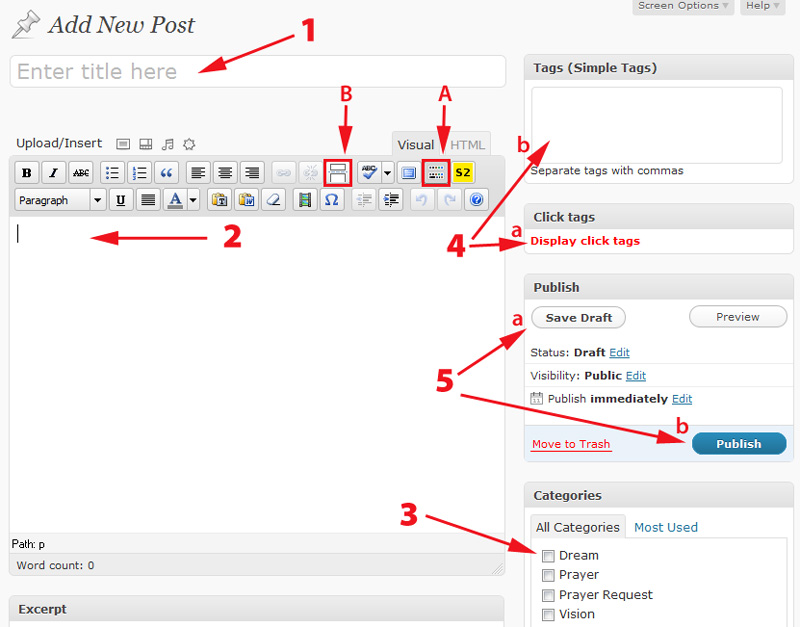
To get started you’ll need to go to the dashboard, and then click “New Post” – #3 in the image below

I’ve corresponded the steps to the number in the image below:
- Give your post a title – this should be SHORT! Thing 2-3 words, 5 max.
- In the buttons between #1 and #2, the one I’ve marked “A” will make the second row of buttons appear
- The button marked “B” will be used as you’re writing the body of your post. This button adds a “more” tag. When you look at the front page of the blog and it shows a paragraph followed by a link that says “read the rest of this entry” – that link is put there by adding a “more” tag (which you’ll add by clicking button B at the end of your paragraph.
- Write the body of your post using the following guidelines:
- Please begin with a brief explanation of what you want the team’s involvement to be. For example:
- If you have a dream about Dyed4you you want to share, let the team know you are looking are looking for insight on the interpretation (or if God’s already given you the interpretation, then for agreement in prayer)
- If God gives you specific area to target in prayer you can ask the team to join in agreement
- Please be as brief as possible without compromising what needs to be shared
- Please keep paragraphs short – long paragraphs are very hard to read
- Use best practices on formatting and when in doubt, go minimal!
- Do not go crazy on formatting (e.g. lots of sizes or colors)
- CAPS can be used as accents, please DO NOT write in all caps (it decreases readability by 10%)
- Please use punctuation 🙂 (We’re not checking grammar here but I have some friends who’ll send mass emails several paragraphs long without a single comma or period… let’s not do that here)
- Please begin with a brief explanation of what you want the team’s involvement to be. For example:
- Select your category – if you don’t see one that fits the default category is “uncategorized” which simply means I’ll categorize it later
- Add tags if you feel comfortable doing so – in 4a you can click on the “Display click tags” link and it will show you tags that have been used previously – that’s an easy way to pick ones for your post. Tags make finding your post again easier. If you want to create a new tag, simply type it into 4b and make sure they’re separated by commas
- Save your post as a draft until you’re ready to post it, which could be at a later date (see Edit Posts below for more info on coming back to a post even if it’s a draft). If you’re feeling uncertain, you can save it as a draft (5a) and email me and ask me to look at it before it gets posted 🙂 When you click Publish (5b) is when it sends an email… and if you edit after that and hit “Update” (which will be where the publish button used to be) it sends another email – so again, save drafts until you’re done. Feel free to use the “Preview” button to the right of the “Save Draft” button if you want to see how it looks.
Edit Posts
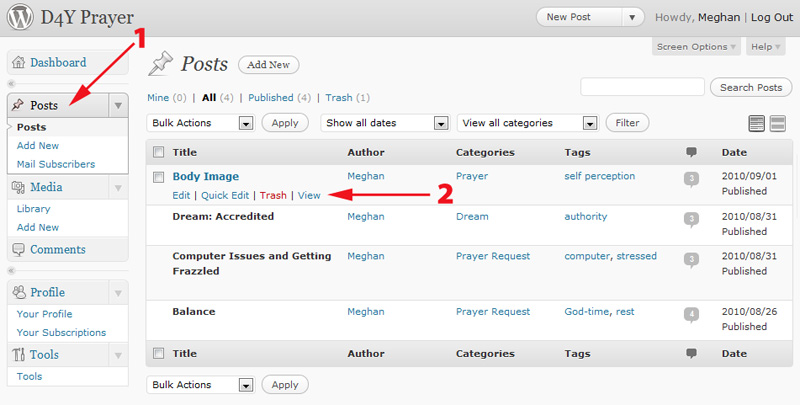
If you want to edit a post, from the dashboard (where you land when you log in and you can return to any time from the site by clicking “Site Admin” under the Meta section on the lower right) simply click “Posts” (shown by 1).
It will list all the posts. As an author, you will have access to edit only posts that you’ve created (e.g. 2 in the image below). By clicking “edit” you can get back to the same screen you saw above in the “New Posts” explanation
In Conclusion
If you have any questions, concerns… please contact me! Happy to answer them and again thank you SO much for being part of the prayer covering for this ministry 🙂